
Connecting remotely to the KH Computer
In order to connect to the KH computer perform the following:
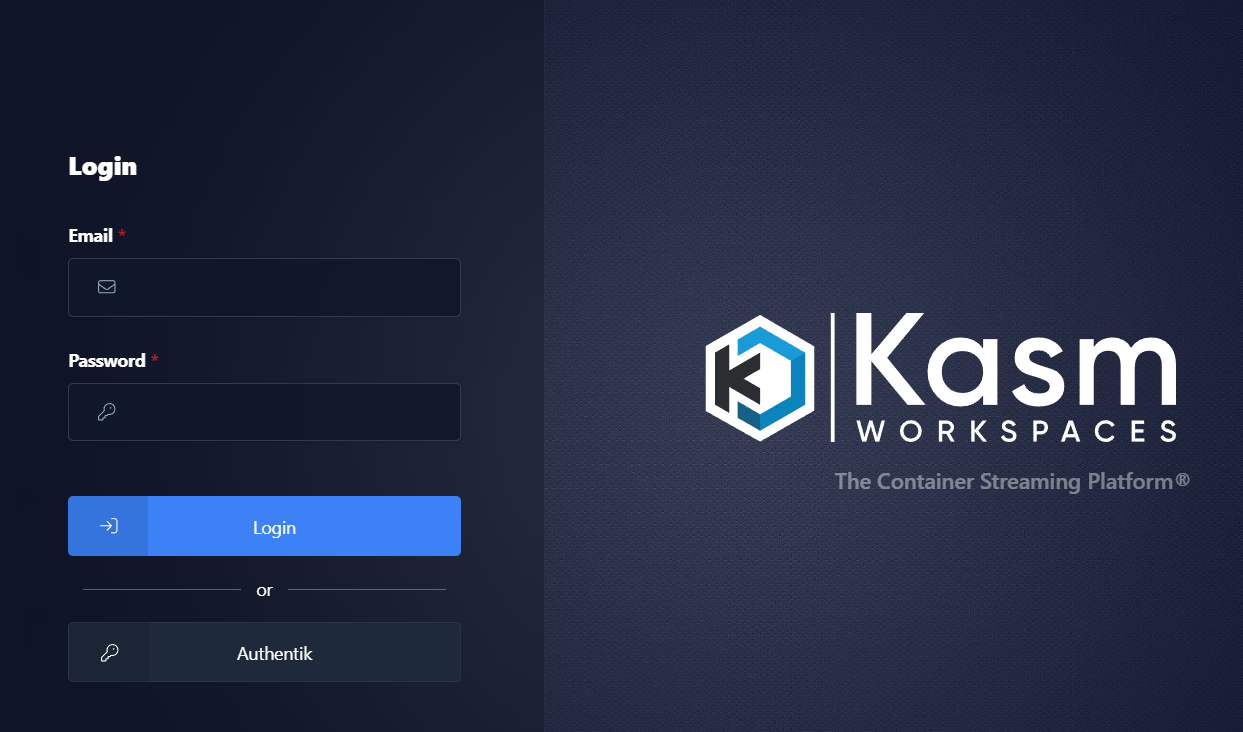
- Browse to: https://kasm.thelanges.us
-
- Enter your credentials as provided and then hit Login
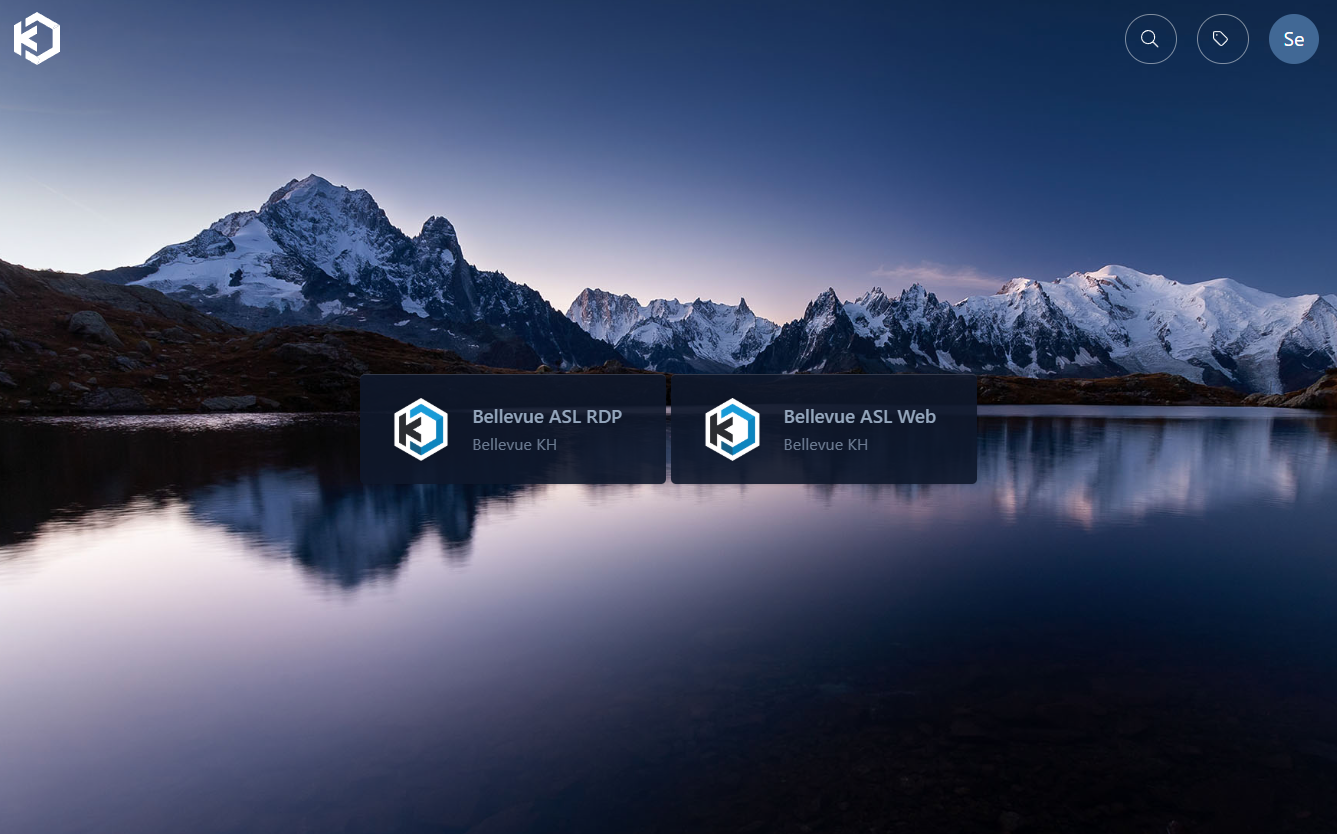
- Once logged in you will be presented with 2 options to connect to the KH computer
-
- Click on the preferred option to initiate the connection
- RDP:
- RDP will download a remote desktop connection file onto your computer that you can then open using the native Remote Desktop Viewer program that is installed on all Windows machines by default. This will be the most performant and provide the best user experience
- Web:
- Web viewer will open the remote connection in a web browser, this will be compatible with any device that is running a modern web browser (MacOS, Android, iOS, etc), it will be slightly limited but will be more compatible with devices
- RDP:
NOTE: IF YOU ARE USING A CHROME BASED BROWSER YOU MAY HAVE TO RELOAD THE INITIAL CONNECTION WHEN USING THE WEB VIEWER
If you select the Web connection and see the following screen for more than 30 seconds please simply REFRESH your browser window and it should then automatically connect.
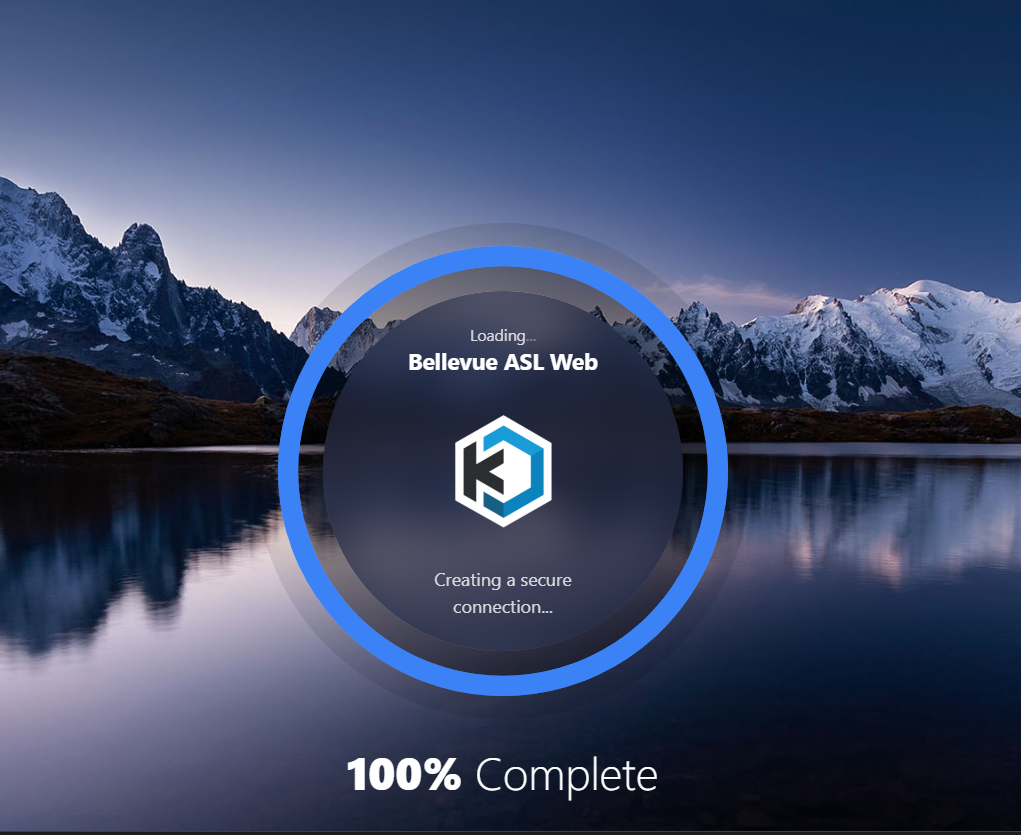
Once connected to the machine it will automatically log you into the appropriate account and you can use the machine remotely.
PLEASE NOTE: This remote connection will take over the computer and log out anyone who is physically sitting at the machine. Please be mindful to not connect up during a meeting time or when someone else may be using the machine in person.